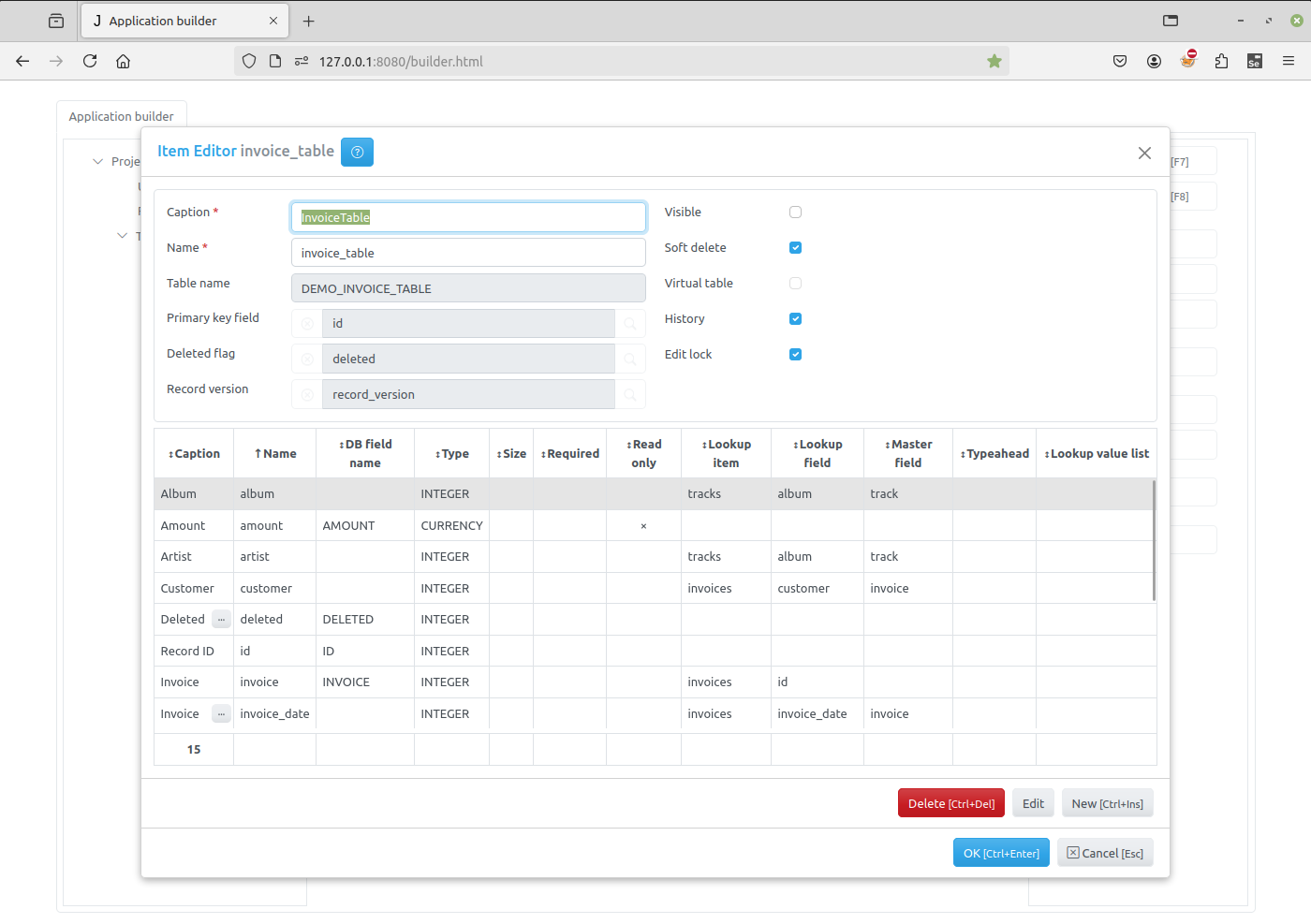
Item Editor
Item Editor opens when a developer wants to create a new item or modify an existing one. See Task tree
The upper part of the Item Editor have the following fields:
Caption - the item name that appears to users.
Name - the name of the item that will be used in programming code to get access to the item object. It should be unique in the project and should be a valid python identifier.
Table - the name of the table that will be created in the project database. This name is specified when creating an item, and can not be changed later.
Primary key field - by clicking on the button to the right of this attribute you can specify the primary key field for the item. If the primary key field was defined for the group that owns the item it will be displayed there by default, otherwise you have to create this field first.
Deleted flag field - by clicking on the button to the right of this attribute you can specify the field that will serve as a deleted flag for the item. If the deleted flag field was defined for the group that owns the item it will be displayed there by default, otherwise you have to create this field first.
Record version - by clicking on the button to the right of this attribute you can specify the field that will serve as record locking field for the item.
Visible - use this checkbox to set item’s visible attribute. The value of this attribute can be used in code on the client to create menu items and so on.
Soft delete - when this check-box is checked, the delete method does not erase a record physically from the table, but uses this field to mark the record as deleted. See Common fields, delete method (server), delete method (client).
Virtual table - if this checkbox is checked, no database table will be created. Use this options to create an item with in-memory dataset or to use its modules to write code. This checkbox must be set when creating an item and can not be changed later.
History - if this checkbox is checked, the application will saving for this item audit trail/change history made by users, see Saving audit trail/change history made by users
Edit lock - if this checkbox is checked, the application will use record locking while users concurrently edit a record, see Record locking
In the center part of the Item Editor dialog there is a table containing a list of fields, defined for the item. These fields are common to all items the group will own.
To add, modify or delete a field use the following buttons:
New - click this button to invoke the Field Editor Dialog to create a new field.
Edit - click this button to invoke the Field Editor Dialog to modify a selected field.
Delete - click the button to delete a field selected in in the field list.
In the bottom-right corner of the Dialog form there are two buttons:
OK - click the button to save change you made.
Cancel - click the buttons to cancel the operation.
Note
You can create new or modify existing fields and set Primary key field and Deleted flag field attributes only when creating a new group or editing an empty one.
For existing item groups, that already own items you can only change Caption, Name and Visible attributes.