Creating a project
Create a new directory.
Go into the directory and run from command line:
$ jam-project.py
For Windows users, jam-project.py command is in Scripts folder, ie.
folder above this one:
...\> ..\project-name\Scripts\jam-project.py
The following files and folders will be created in the directory:
/
    css/
    js/
    reports/
    static/
    locks/
    admin.sqlite
    langs.sqlite
    server.py
    index.html
    templates.html
    wsgi.py
To start the Jam.py web server, run the server.py script.
$ ./server.py
For Windows users:
python server.py
Note
You can specify a port as parameter, for example
$ ./server.py 8081
By default, the port is 8080. If you specify another port, you need to use it in your browser in the next steps.
You’ll see the similar output on the command line:
User Guide: https://jampy-docs-v7.readthedocs.io/
WARNING: This is a development server. Do not use it in a production deployment. Use a production WSGI server instead.
 * Running on all addresses (0.0.0.0)
 * Running on http://127.0.0.1:8080
 * Running on http://127.0.0.1:8080
Press CTRL+C to quit
If we open a Web browser and visit the app, the below message will display:

Open a Web browser and go to “/builder.html” on your local domain – e.g.:
127.0.0.1:8080/builder.html
You should see the language selection dialog. This defines the language used for the user interface. You can select the language from the list of default languages, or import your own, using the “folder” icon to the right of the input field. See the Language support page for more information. Select your language and press the OK button.
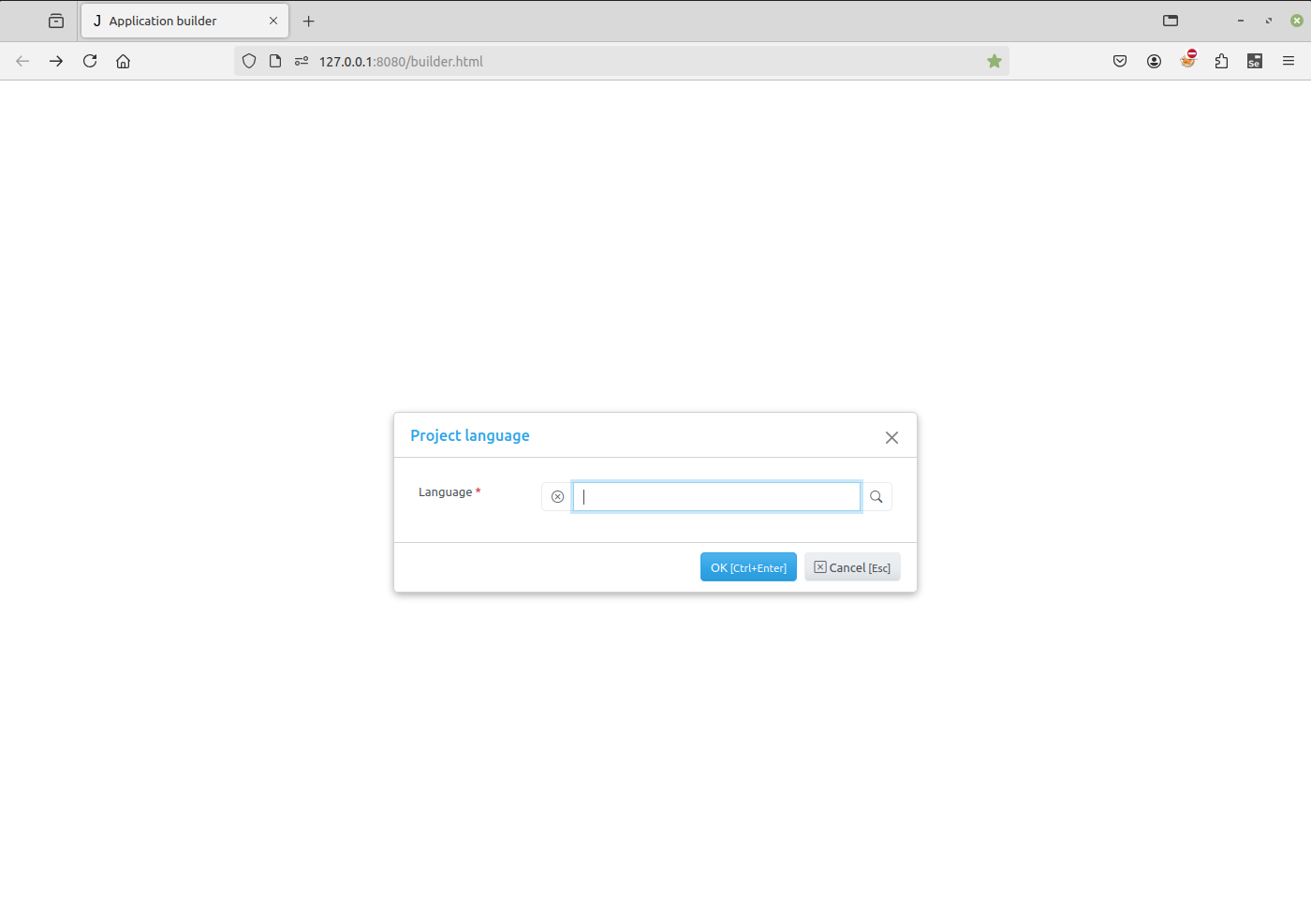
Next is the new project dialog. Fill in:
Caption - the project name that will appear to users.
Name - the name of project (task) that will be used in the code (Python or JS) to get access to the task object. This should be a short and valid python identifier. This name is also used as a prefix when creating a table in the project database.
DB type - select a database type. If the database is not Sqlite, it must be created in advance and its attributes should be entered in the corresponding form fields. To see examples of Database setup, follow the link.
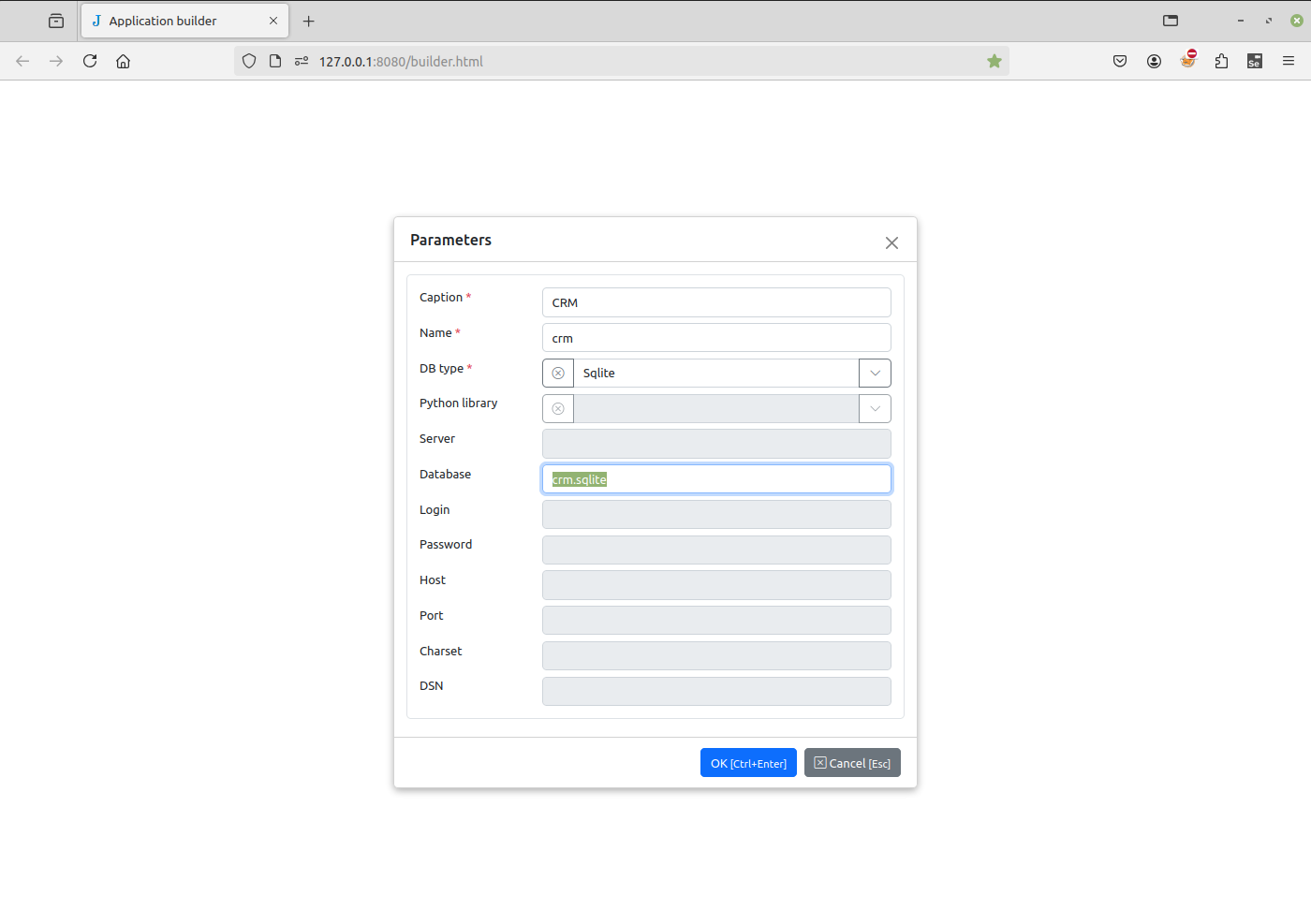
When you press OK, the connection to the database will be checked, and in case of failure an error message will be displayed.
If all goes well, a new project will be created and the project tree will appear in the Application builder.
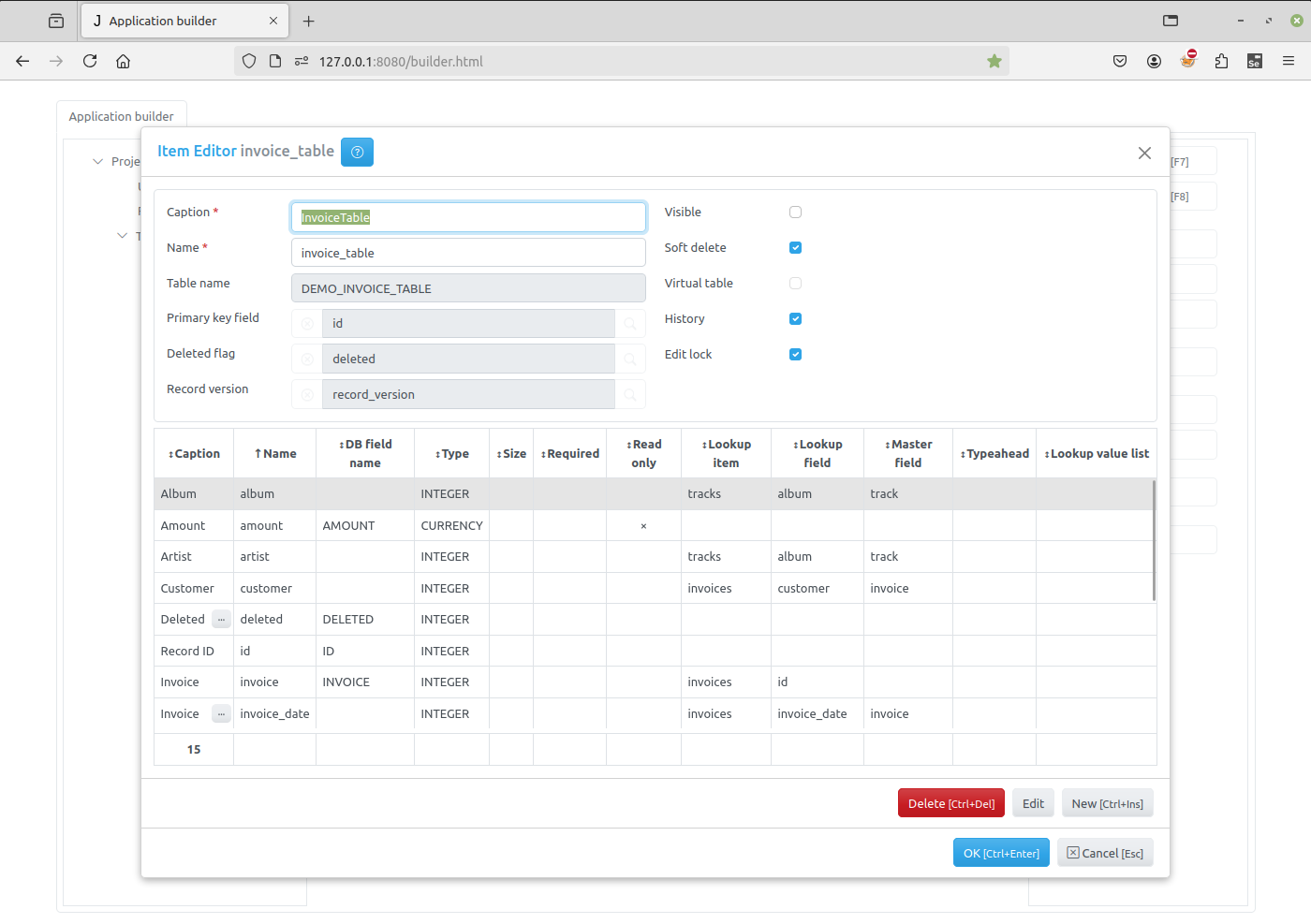
Important
As seen on top right corner, The Name of the application is displayed, name of the database used, application version number,
Jam.py framework version number and Python version.
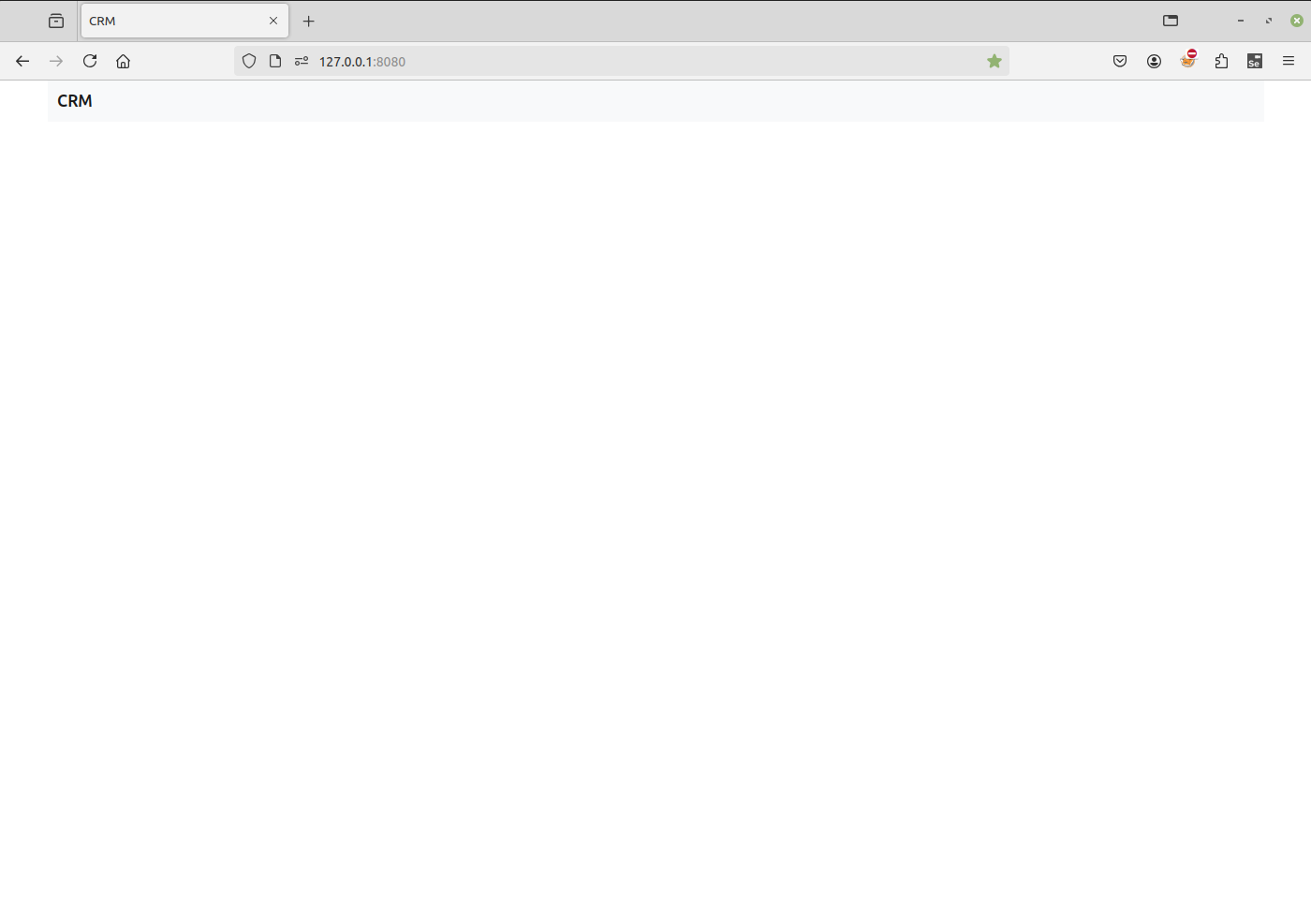
Open a new tab, type
127.0.0.1:8080
in the address bar and press Enter. A new project appears with an empty menu.
Stopping the project
In order to stop jam.py, press Control-C on the window where it runs.
Caution
For Windows: it could be that Ctrl-C does not work in order to stop Jam.py. In this case, try with Ctrl-Break or Ctrl-Fn-Pause.